|
DSL Access Support
Please note that the following settings are for our dynamic IP users.
If you have questions about static IP configurations, please contact support at 760-438-9555 or
customerservice@select.net.
Windows 95/98 Configuration
Windows 2000 Configuration
Windows 95/98 Configuration
- Right-click on the Network Neighborhood icon.
- Click on Properties.
- Double-click your NIC card (it will say TCP/IP ->, the brand name, and ethernet).
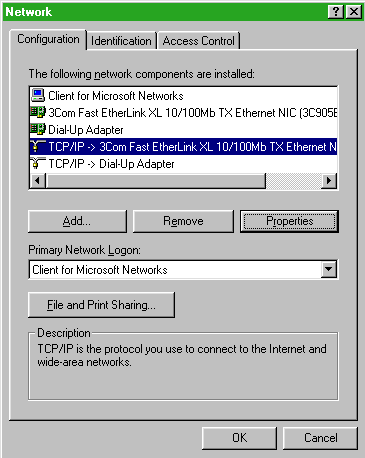
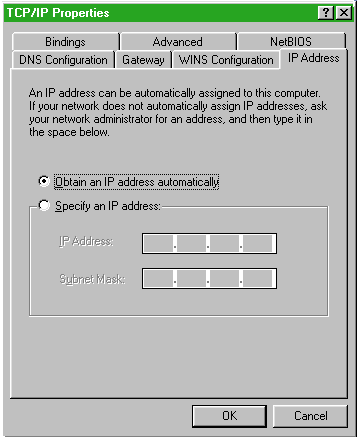
- Under the IP Address tab, select Obtain an IP address automatically.
- Click on the DNS Configuration tab, select Disable DNS.

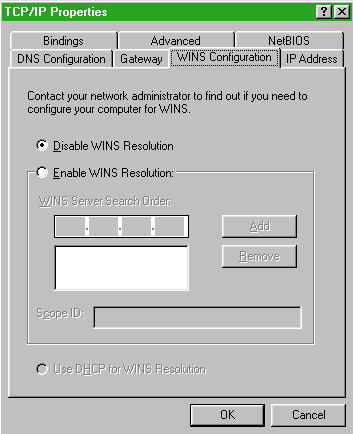
- Click on the WINS Congiuration tab, select Disable WINS Resolution.
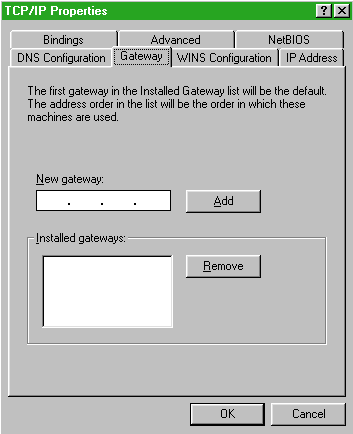
- Click on the Gateway tab. Make sure the New Gateway and Installed Gateways sections are left blank.
- Under the Bindings, Advanced, and Net BIOS tabs; do not change any settings.
- The new settings should take affect by rebooting your computer.
- You will then be connected to the Internet through your DSL line!
Windows 2000 Configuration
- Right-click on the My Network Places icon.
- Click on Properties.
- Right-click on the Local Area Connection icon.
- Click on Properties.
- Doule click on Internet Protocol (TCP/IP).
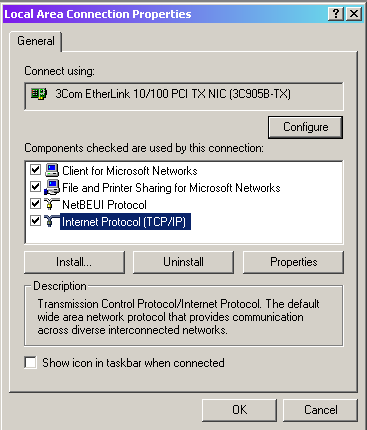
- Select the options Obtain IP address automatically and Obtain DNS server address automatically.
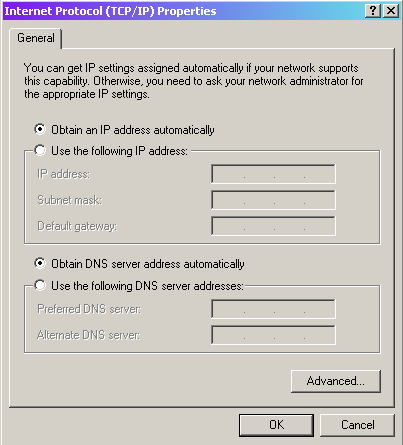
- Click OK and the new settings should take affect.
- You will then be connected to the Internet through your DSL line!
|
Legal | Privacy | Contact Us
Copyright© 1995-2022 SelectNet Internet Services. All rights reserved.
Services, prices, and terms subject to change without notice.
|
|
|


